VirCast Direct logoPC audio linkVirCast Direct

Send audio from one PC to another.

VirCast Direct links your gaming PC and your streaming PC over your home network. Six audio lanes, found and paired in one click. Free, forever.

Two PCs usually means a mess of cables.

Line-in hum, virtual cables, and IP addresses typed by hand on both machines.

VirCast finds the other PC by name.

Open it on both PCs and press Connect PC. There's nothing to type.

Six lanes, matched on both sides.

Each color plugs into the same color on the other PC, with its own port.

Press play once. Both PCs go live.

48 kHz audio with as little as 50 ms of delay, and a meter on every lane.

Now try the real app.

It's just below, running in your browser.

Try the live demo
Scroll to connect them

Try the real app.

This is VirCast Direct's actual interface, running on a demo engine in your browser. Connect, start and mute all work, and no audio leaves your computer.

  • 6 lanessend or receive, each with its own color
  • 50 mslowest delay setting
  • No typing IPsit finds the other PC by name
  • Free foreverfor Windows 10 and 11
VirCast Direct
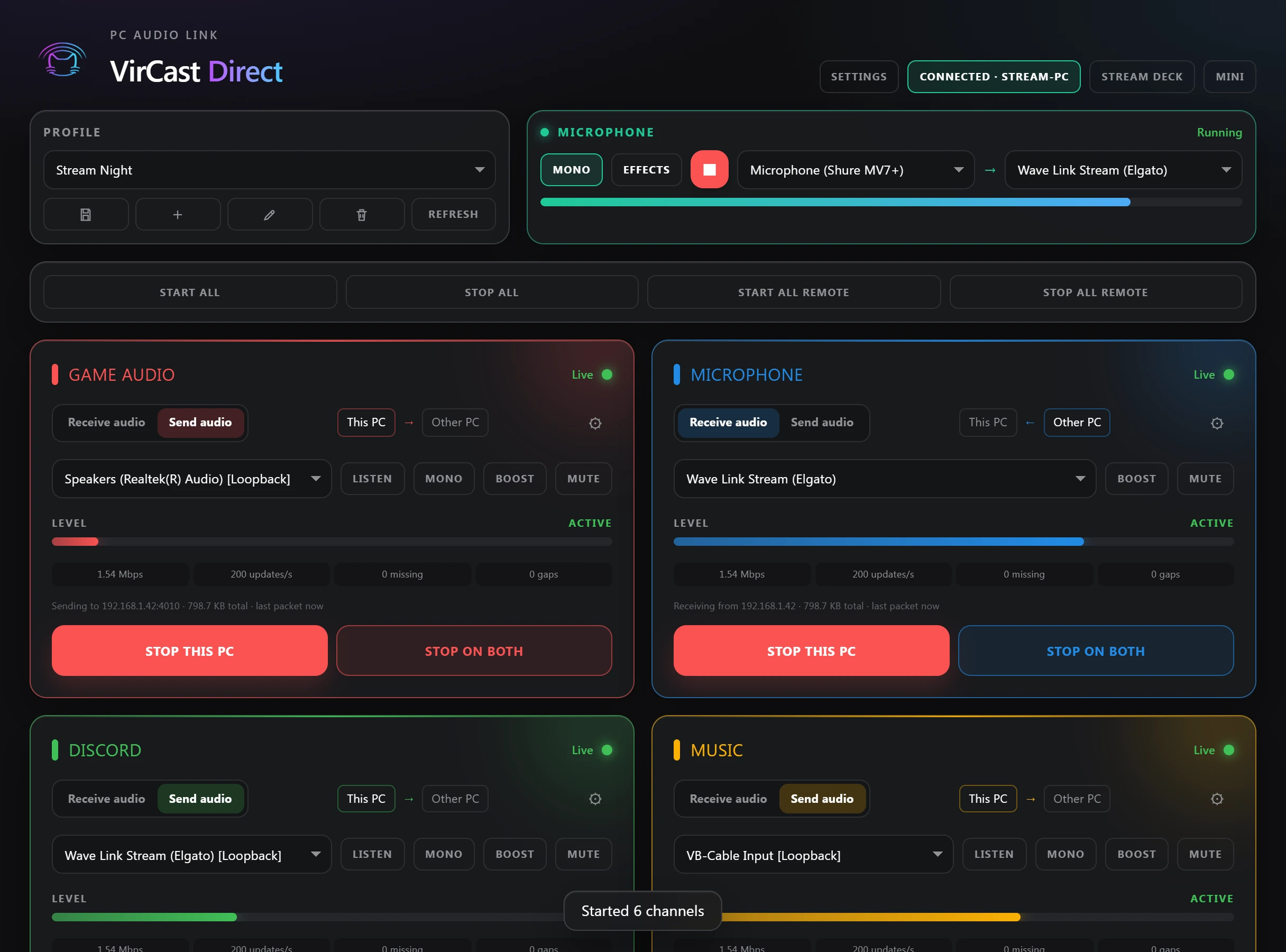
VirCast Direct with six lanes live and connected to STREAM-PC
  1. 1Press Connect PC at the top. It finds STREAM-PC for you.
  2. 2Press Start all and watch every lane go live.
  3. 3Press Mute on a lane, or open Effects.

On a computer, this window is the live app you can click through.

The usual ways of sending audio between PCs fight you.

Every 2-PC streamer has tried at least one of these. Here's what goes wrong, and what VirCast does instead.

Line-in cableA 3.5 mm cable from one PC's output to the other's input.
No ground-loop hum. Audio travels digitally over your network, so there's no analog cable to pick up buzz.
VBAN and network mixersStream names and IP addresses typed on both PCs.
Nothing to type. Press Connect PC and it finds the other PC by name, then matches every lane on both sides.
Virtual cablesA chain of virtual devices that only you understand.
Six named lanes. Game audio, mic, Discord and music each get their own color, so you always know what goes where.
Drifting out of syncAudio slowly slips behind the video over a long stream.
Stays locked. A jitter buffer and clock-drift correction keep playback smooth for hours.
Breaks after updatesA Windows update or unplugged headset silently kills the route.
Recovers by itself. Lanes that were running come back after device changes, and you get a warning if a stream stalls.

Pairing takes three steps.

1

Open VirCast on both PCs

Same home network, any Windows 10 or 11 PC.

2

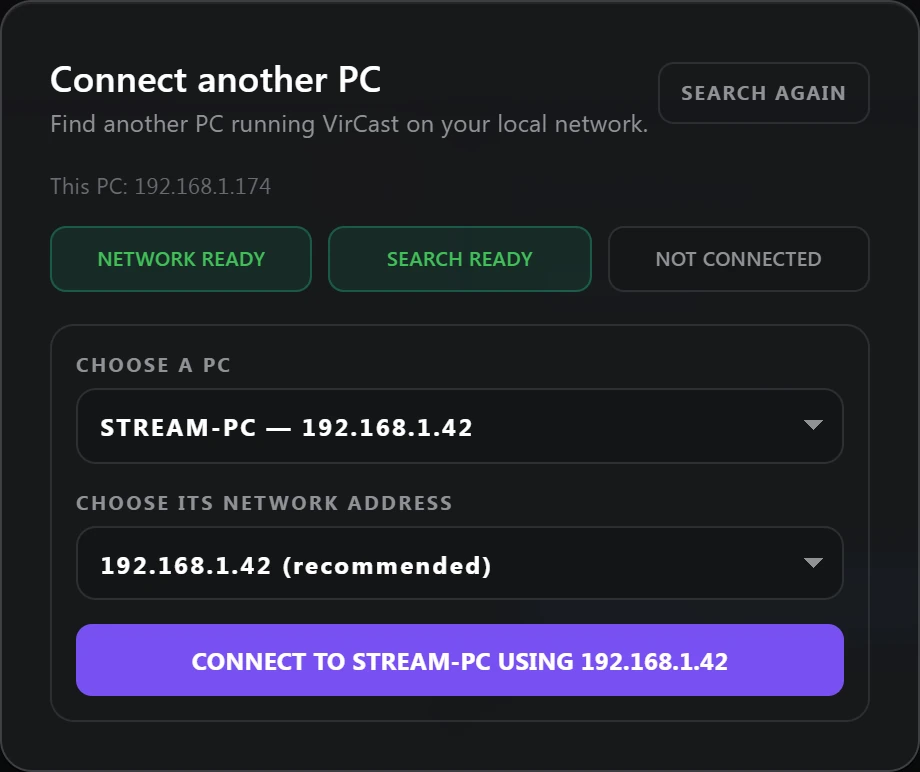
Press Connect PC

It finds the other PC by name and recommends the right address.

The Connect another PC panel, showing STREAM-PC found at 192.168.1.42
3

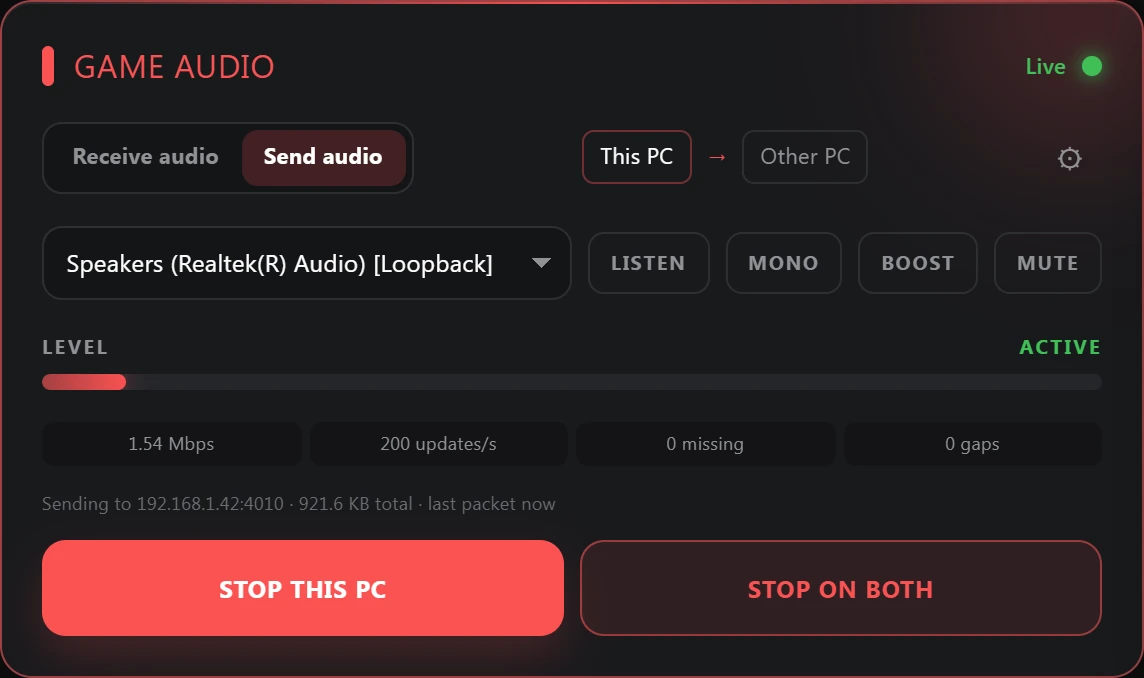
Press Start on both

One button starts the lane on this PC and the other one.

A live Game Audio lane sending to the other PC, with Stop this PC and Stop on both buttons

Six lanes. Each color plugs into the same color.

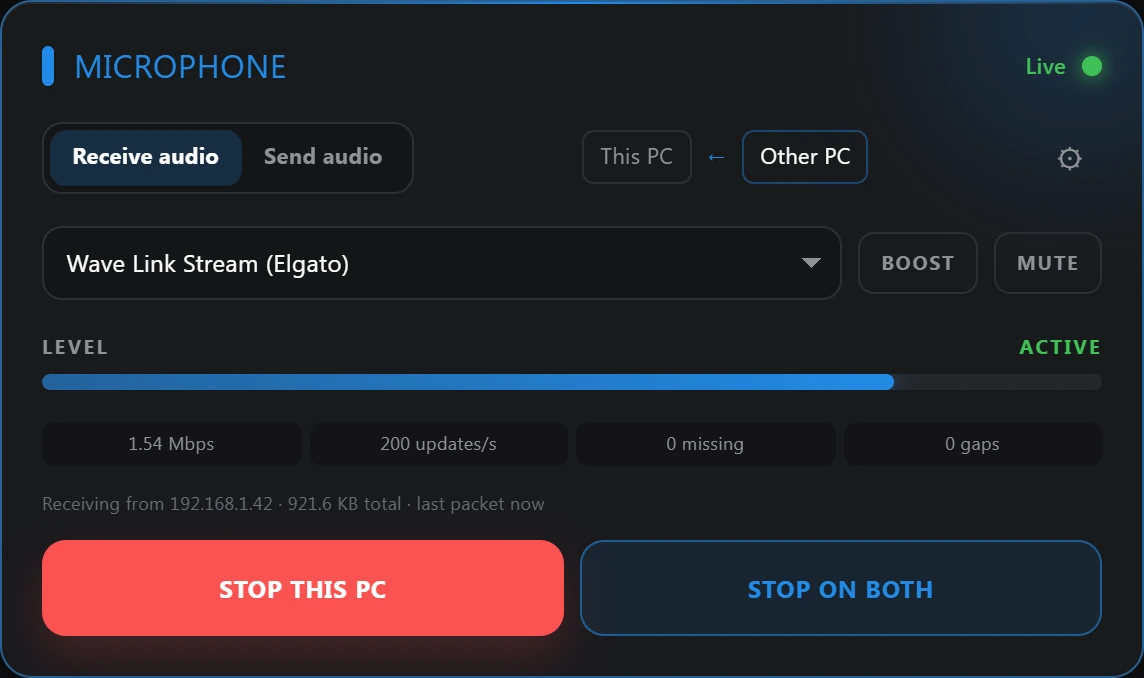
Set each lane to send or receive, pick its device, and the matching lane on the other PC does the opposite. Tap a cable to mute it.

Signal on each cable flows in the direction that lane sends.

A Microphone lane receiving audio from the other PC into Wave Link Stream
  • Its own device per laneSend system audio, a single output, or a mic. Receive into any output, including Wave Link.
  • Mute, mono and boostFix a one-sided mic with one press, or push a quiet source up.
  • A meter and live statsSee the level, data rate and any missing audio for every lane.
  • Listen testHear exactly what a lane is sending on your own headphones.

A mic chain, built in.

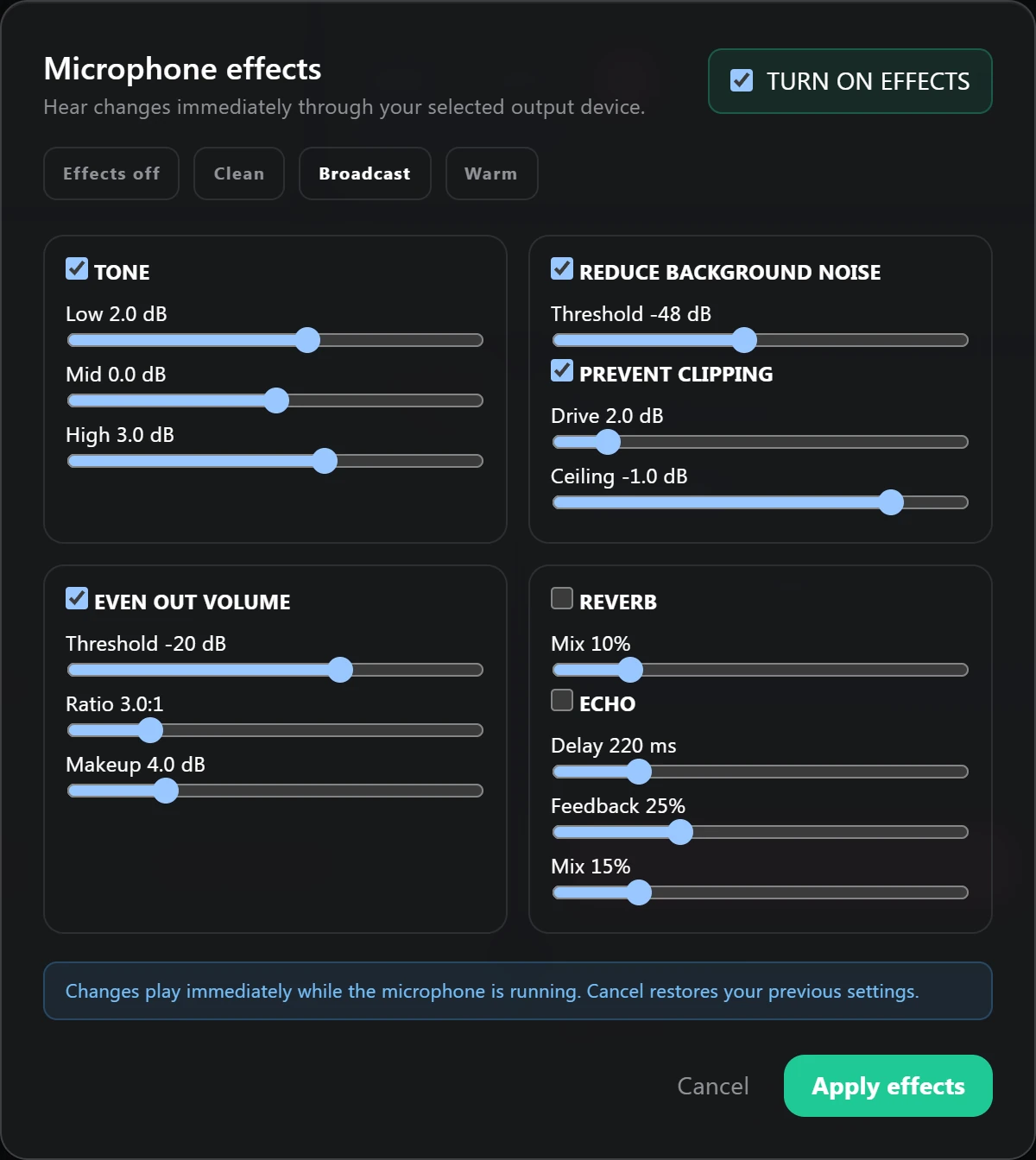
Run your microphone through VirCast's local mixer before it goes anywhere. Pick a preset or shape it yourself.

  • Presets: Clean, Broadcast and Warm
  • EQ, background-noise gate, compressor and limiter
  • Reverb and echo when you want them
  • Changes play instantly, and Cancel restores what you had
The Microphone effects panel with tone, noise reduction, clipping protection and volume controls

Out of the way while you play.

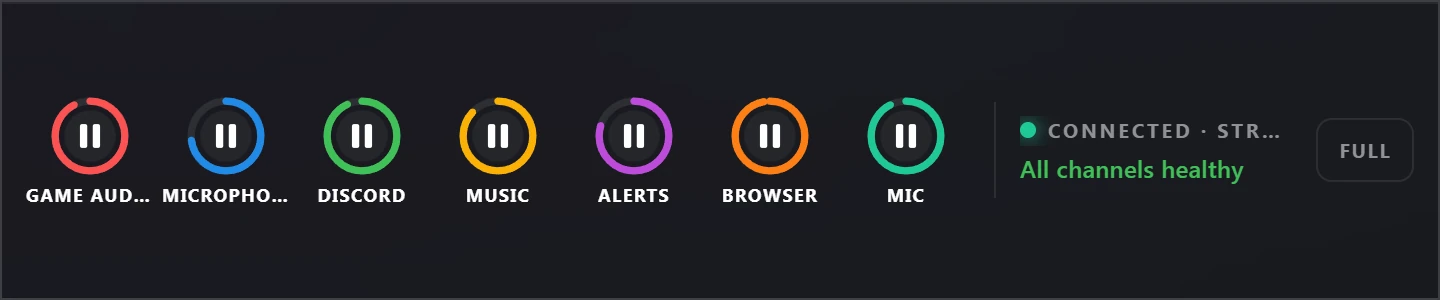
Shrink VirCast to a mini bar that stays on top of your game. Close the window and it tucks into the tray, and the audio keeps running.

The VirCast mini bar with play controls for six lanes and the mic, connected and healthy
Audio
48 kHz, from any input, output or your whole system's sound.
Delay
Low (50 ms), balanced (100 ms) or most reliable (200 ms).
Profiles
Save setups like "Stream night" or "Podcast" and switch in one click.
Stream Deck
A plugin to start, stop and mute lanes from your deck.
Health warnings
Told right away if a lane stalls, drops audio or gets stuck.
Works with Wave Link
Send into or receive from Elgato's mixer like any other device.

It stays on your network.

VirCast only talks to PCs in your home. There's no account, no cloud and nothing to upload.

It's free, forever. And we're looking for testers.

Join the Discord to get VirCast Direct and tell us what your setup throws at it. Two PCs and a home network are all you need.